
By Saad
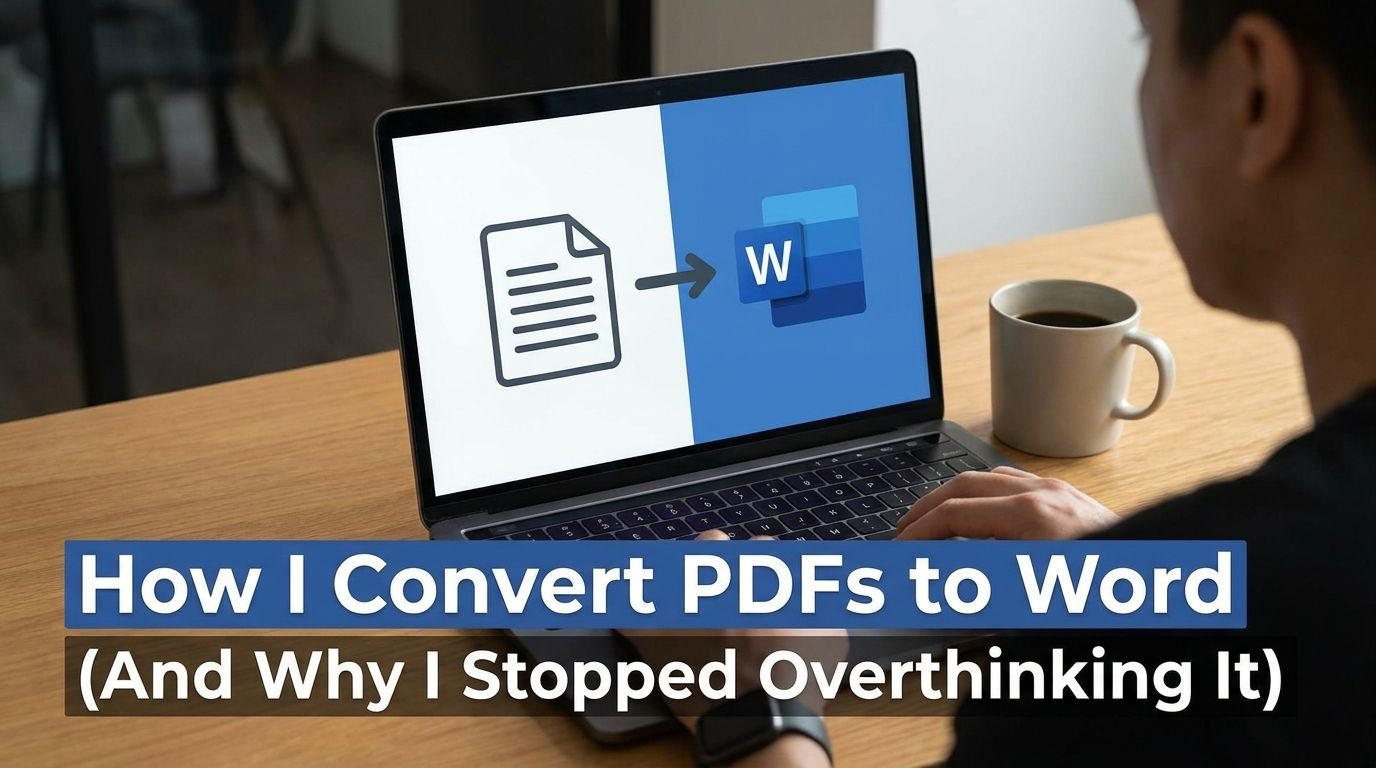
How I Convert PDFs to Word (And Why I Stopped Overthinking It)
Two winters ago I was sitting in a parking lot outside my old apartment, trying to change one line in a lease renewal before my landlord’s 5 p.m. deadline. The document was a PDF. I needed it in Word so I could edit the rent number and initial a clause. I had eleven minutes and a phone with 40% battery. That’s the whole story, but it’s also the reason I know this topic better than I ever wanted to.
Read more Strategicpost Stories
The Problem Nobody Explains Well
A PDF is built to look the same everywhere — that’s the whole point of the format. Word documents are built to be edited. Those are two different jobs, and when you try to force one into the other, something usually breaks: a table shifts, a font swaps, a paragraph turns into three paragraphs for no reason. People assume converting a PDF to Word is a simple button press. Sometimes it is. Sometimes it’s a small nightmare, depending on what’s actually inside the PDF.
The lesson here is boring but true: the method that works depends entirely on what kind of PDF you’re starting with.
If the PDF Has Real Text (Most of Them Do)
If you can highlight the words in the PDF with your cursor, you’re in luck. That means the file has actual text data in it, not just a picture of text.
The fastest method, no software needed:
- Open the PDF in Microsoft Word directly (File → Open, choose the PDF).
- Word will ask if you want to convert it. Say yes.
- Wait. Depending on the file, this takes anywhere from two seconds to two minutes.
Word rebuilds the layout as best it can. For a simple document — a letter, a resume, a one-column report — this works almost every time. For anything with columns, tables, or a lot of images, it gets messier, and I’ll get to that in a second.
If you don’t have Word open or don’t want to use it, Google Docs does the same trick: upload the PDF to Google Drive, right-click, “Open with Google Docs.” It converts on the spot, and you can download it as a .docx file afterward. I use this one more often than Word itself, honestly, because it’s already open in a tab.
The Best PDF to Word Converters
If the PDF Is Actually a Scanned Image
Here’s the part most conversion guides skip. If you try to highlight text in the PDF and nothing selects — the whole page just highlights as one block — that means it’s a scanned image, not real text. It’s a photo of a document, not a document.
In that case, regular conversion won’t work. You need OCR (optical character recognition — software that reads the shapes of letters in an image and turns them into actual text). Adobe Acrobat has this built in. So does Google Drive, quietly, in the background, when you open a scanned PDF as a Google Doc. The results aren’t perfect. Handwriting fails almost every time. Faded or crooked scans introduce typos you’ll need to fix by hand.
I once OCR’d a twelve-page scanned contract and the software turned every instance of the word “shall” into “shell.” I didn’t catch it until my second read-through. So: read through.
The Free Online Converter Route
There are dozens of sites — Smallpdf, ILovePDF, PDF2Go — that do this for free, no software install. You upload the PDF, it spits out a .docx file. For a quick one-off job, they’re fine. The tradeoff is privacy: you’re uploading your document to someone else’s server. For a grocery list, who cares. For a signed contract, a medical form, or anything with your address on it, I’d think twice. Read where the file goes before you paste in something sensitive. That’s not paranoia, that’s just how uploading works.
What Actually Goes Wrong
The honest downside of any conversion method, free or paid, built-in or third-party: formatting rarely survives perfectly. Tables split awkwardly. Footnotes sometimes vanish. Fonts substitute themselves with something close but not identical. A two-column PDF might convert into one long scrambled column, words from column A and column B mixed together like a bad translation.
None of this means the conversion “failed.” It means PDFs and Word documents were never designed to be the same thing, and every conversion tool is doing its best guess at reversing a one-way process. Expect to spend a few minutes cleaning up the result. Budget for it the way you’d budget time for parking.
What I’d Actually Tell You to Do
If it’s a normal text document: open it directly in Word or Google Docs and let it convert. Takes thirty seconds.
If it’s scanned or a photo: use OCR through Acrobat or Google Docs, then proofread it like you mean it.
If it’s sensitive: don’t upload it to a random website you found by Googling “free pdf converter.”
That’s it. That’s the whole system. I ended up initialing that lease from my phone in the parking lot, using Google Docs, with a paragraph that came out slightly crooked and a font that didn’t quite match. My landlord never noticed. Nobody ever notices the font.
A PDF is a photograph of a document. Word is the document itself, still wet, still able to be reshaped. Converting one to the other is just asking the photograph to remember how to move again — and most of the time, it mostly can.